

Advanced site search tailor-made for auto parts e-commerce. Fast, accurate search results that convert!
Barcelona, Spain
Joined October 2013
- Tweets401
- Following17
- Followers72
- Likes11




Convermax App Update: collapsed filters
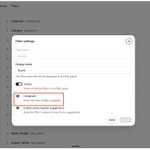
Want a more compact filter panel? You can now set selected filters to appear collapsed by default.
In Filter settings in Convermax apps for Shopify and BigCommerce, switch on the “Collapsed” toggle for every filter you’d like to start with the facet panel closed. If you want some filters to appear collapsed in your filter panel, you can now turn the toggle on. Previously, setting this up required a support ticket. Now you can do it with one click in the app.

Convermax MCP Update: one connection for all stores
If you run several stores on Convermax, you no longer have to connect each one to your AI assistant separately. Now one URL covers them all: myconvermax.com/mcp.
Here’s how to connect:
1. Add myconvermax.com/mcp to your AI client, like Claude Code or ChatGPT.
2. Sign in with your Convermax account.
3. On the consent page, choose two things:
- Which stores: All my stores, including ones you add later (the default), or only the stores you pick.
- What the assistant can do: Leave “Allow changes to fitments and synonyms” checked for full access, or uncheck it to make the connection read-only.
Running a single store? You skip the store choice. The assistant works with your store and has the same tools as before.
How it works
For instance, name the store as you usually do: “Show me fitment coverage on [store name].” The assistant checks the stores you’ve approved and picks the right one. If more than one store matches, it asks which one you mean. It also asks you to confirm the store before every change.
On the single URL, every request is checked against the stores you picked and your current access to them. If you lose access to a store, the connection loses it too. Your other stores keep working, and there’s nothing for you to revoke.
This helps agencies and external teams: when a client removes you from their store, only that store drops out of your connection.
Managing connections
A multi-store connection shows up on the Integrations page for each store it includes. If you remove it from one store, it will be removed from all of them.
If you want to change your selection later, like choosing different stores or switching between read-only and full access, remove the connection and sign in again. If you picked “All my stores”, you don’t have to do this when adding a new store, since new stores are added automatically.
Everything you connected before still works
Your existing per-store connections and store API keys will keep working, so you can move to the single URL whenever it suits you. Each store API key will work with the single URL, but only for its own store.

Convermax App Update: Fitment Imports Review
Now you can check your fitment file before it goes live in your store. If you use Shopify or BigCommerce, you can review the fields from your uploaded file before anything is saved.
Previously, importing fitment was a single step: you uploaded the file, and it was applied right away. There was no preview or record of what was imported. If there was a mistake in a column or the rows didn’t match any products, you only found out after the import.
Imports now go through a new Import Fitments page: Destination → Upload → Review → Done. It replaces the import window in the Fitment Editor.
See what the file should look like
First, you can check the visual example and instructions for the file’s structure, so you can compare your spreadsheet against it. Follow the requirements to avoid the common mistakes that you can check as well.
Review before anything is saved
Before you save, you see the matched products, the unknown vehicles, and the skipped rows. During the review, SKUs and Vehicles are both validated. So it catches whether importing will create duplicates in your Year-Make-Model selectors or not. Error and unknown-vehicle reports are available as CSV, so you can fix the file and upload it again.
Where the data is kept
Fitment data is kept in Shopify Files (Shopify stores only), a Google Drive folder, or the merchant’s external folder.
History
The new History page keeps every review and its status, so you can come back to it when you need. Open a completed review with the new View review button to see its import status.
Our support team can also see upload history, review the ones that failed, and help you finish the import or fix it.


YMM Lookup Update: Popular Makes and Models from Analytics
Popular Makes and Models are now generated automatically inside the Year-Make-Model selector in your store. They are rebuilt from your store’s analytics data, so your customers' most-searched vehicles are one click away.
On each indexing run, we read the Vehicles report in your store’s analytics for the last 90 days. From it, the selector shows:
- up to 8 popular makes
- up to 10 popular models for each make
It works for every store by default now.


Convermax Dashboard: Integrations Page
The Sources page is now called Integrations, and it works just like it does in our Shopify and BigCommerce apps. No matter which platform your store uses, you can browse and manage all 35 integrations, filter them by status or category, and open any integration’s settings in a dialog.
We’ve also added two new cards in AI tools: OpenAI and Anthropic. You can now connect, replace, or disconnect your own key.

Parts Advisor: customization and chat history
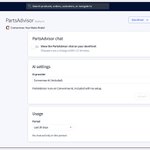
A lot of you wanted to customize Parts Advisor and see what shoppers ask it. Now you can do both, and you can also pick the AI model, all in the new Parts Advisor tab in your Convermax Dashboard.
This is especially helpful if your store uses Shift4Shop, WooCommerce, or Adobe Commerce. We don’t have a dedicated app for these platforms, so until now, you couldn’t manage these settings on your own.
Chat History: what shoppers ask
You can choose the last 7, 30, or 90 days to view conversations, shoppers, turns, product clicks, click-through rate, and failed turns.
Review the conversations. You can search the list, open any conversation to see what the shopper saw, and move between them using Previous and Next.
Appearance: match your store’s theme
Change how Parts Advisor looks and check it in a live preview before you save. Keep in mind that if your store already sets the launcher position or accent color in its own config, saving in the Dashboard won’t overwrite them. To change those two settings, change them in the Dashboard.
AI provider: choose the model, control the cost
- Choose the provider and model.
- Set a daily turn cap.
- Compare models before you switch.
- Track usage and estimated cost for each model.


Security Update: Convermax isn’t affected by this week’s PHP and certificate issues
You may have seen news today about two security issues: critical vulnerabilities in PHP (CVE-2026-109618 and CVE-2026-109619) and eight revoked certificates from the certificate authority eMudhra. Convermax is not affected by either, and you don’t need to do anything on our side.
PHP vulnerabilities. Convermax doesn’t use PHP anywhere: not in our search engine, our apps, or our supporting systems. There’s nothing to patch.
eMudhra certificates. We’ve updated the trusted certificate lists on all our servers, so our systems reject the revoked certificates. Your connection to Convermax remains secure.
One thing worth checking on your end. This covers Convermax, not your whole store. WooCommerce, Magento, many plugins, and hosting panels: all run on PHP. If your store uses any of them, ask your host or developer whether PHP has been updated. On Shopify or BigCommerce, the platform patches its own servers. Apps or integrations you host elsewhere are still worth asking about.
Parts Advisor: Convermax's new storefront chat assistant
We’ve built a Parts Advisor: a storefront chat assistant that taps into your fitment data and answers questions based on it.
Most parts chatbots read product titles and descriptions, then guess whether a part fits. Parts Advisor doesn’t guess. Every search runs through your fitment data with the shopper’s vehicle applied. So every part it shows is one your own data lists for that vehicle.
If your data contains no information for that vehicle, the assistant says so. It doesn’t show parts that only look close.
What happens after a shopper starts a conversation?
The vehicle a shopper mentions in chat becomes the store’s selected vehicle and is added to their Garage. From there, it works like any vehicle picked in Year Make Model search:
- Product pages verify fitment against it.
It’s still there on the next visit.
- It’s recorded into analytics, customer profiles, and order details the same way.
How to turn it on:
- If you sell on Shopify and BigCommerce, you can turn it on with a switch in the Convermax app.
- For other platforms, you’ll need to request a one-line config change from us.
Pricing is still in development.
For now, Parts Advisor is included at no extra charge. It runs on Convermax AI by default, or on your own OpenAI or Anthropic key with the model you choose.
Try it on your store and tell us what you think.

New Fitment Source: Parts Unlimited
You can now connect fitment data from Parts Unlimited in the Convermax Dashboard and in our Shopify and BigCommerce apps. Parts Unlimited is a leading distributor of aftermarket accessories for the Powersports industry. We index their full catalog every week. Here’s what their catalog offers:
- Over 143,000 parts
- Over 480 brands
- Fitment data for 95,000 vehicles across street, off-road, ATV/UTV, snow, and watercraft.
How to connect it
1. Get your Parts Unlimited API key by emailing the Dealer Development department at [email protected] to request access.
2. Add the key in Convermax:
- For Shopify and BigCommerce, you can find this on the app's Integrations page.
- For other platforms, go to the Sources page in the Convermax Dashboard.


Shopify App Update: Brand Fitment Coverage
Have you ever wondered how accurate your fitment data is for each brand? Now, you can check this directly in the Convermax app for Shopify. The new Brands page shows all the brands in your store and displays the fitment coverage for each. For every brand, you’ll see:
- Product count
- Fitment coverage
- Units sold in the last 60 days
- Which sources provide fitment now or could cover.
You can sort and filter the list by coverage, or search by name or AAIA brand ID. For each brand, a pop-up shows each fitment source, its status (connected or not), and whether it is approved, because not all sources have an approval value. You’ll also see the number of parts for that brand in the source catalog, plus a link to the Fitment Editor filtered to products without fitment.
How coverage is calculated
Coverage is the percentage of a brand’s products with fitment, including universal fit, out of all products that require it. Non-vehicle items like helmets and apparel are not counted.
What counts as normal
Your coverage is compared to the median for that brand across other stores that carry it, not your own. This comparison is only made if at least five other stores carry the brand. If fewer stores carry it, there is no comparison.

Apps Update: upload and remove custom data
Now customers can upload custom fitment data right from the Shopify app, BigCommerce app, or the Convermax Dashboard. There’s no need to set up Google Drive yourself anymore.
Previously, you had to create a Google Drive folder, give our service account access, paste the folder link, and wait for us to confirm everything worked. Now, you don’t have to do any of that.
How it works:
- When you upload a file, we automatically create a store folder inside Configuration Spreadsheets in Google Drive if it isn't there yet.
- Each folder displays your files along with their size, last modified date, an edit link, and a delete option.
- If you delete a file, it moves to Drive's trash, recoverable for 30 days.
- Anyone who uploads a file gets edit access. If their email isn’t linked to a Google account, Drive sends them an invite automatically.


YMM lookup: new “Go” button behavior
The new YMM lookup mode helps shoppers make sure they select every option. If someone chooses Make and Model but forgets to pick Year, clicking "Go" will open the Year dropdown instead of starting the search. After they pick the last option, they go right to the search results without any extra steps.
This feature is turned off by default. Your store will keep the usual Go button behavior unless you ask us to turn on the new mode.
Fitment Editor Update: AI Suggester for Shopify stores
Finding fitment data for a product is usually slow and hard. You have to search the vendor’s site, check a catalog page, and copy vehicle rows by hand. Now merchants who sell auto parts on Shopify can use AI Suggester to do this research for them and propose vehicles to review. You’ll see a "Suggest" button next to the "Command" button in the Fitment Editor inside the Convermax app for Shopify. Choose a product that needs fitment, run a suggestion, and check the results.
How it works
The agent searches the web with your vendor SKU, opens the pages it finds, and collects fitment data from them. It also reads your store’s product data, such as descriptions, tags, and fitment on similar SKUs, so the results match your catalog instead of a generic listing. It checks each suggested value for accuracy. If your store catalog includes the vehicle, it uses that information. If the vehicle is not in your catalog, it uses the VCdb for validation.
What you get
After the research is done, merchants can get:
- Vehicle rows,
- Creation candidates (vehicles it found that your store catalog doesn’t have yet),
- A universal-fit or non-vehicle verdict,
- An abstention — when it couldn’t resolve the product, it says so, instead of guessing.
The agent is read-only. It never writes fitment data itself. You review the proposal in a side panel and click the "Accept" button to apply it. Each store gets up to 100 suggestion runs per day, with 3 running at a time.
Available now only for Convermax stores on Shopify. Users who have never used Fitment Editor will need to email us to activate this feature. BigCommerce isn’t supported yet.
It’s just a first version of this feature. If you have any feedback, please email us at [email protected].
Convermax Apps Update: YMM Values Translations
You can now translate your Year Make Model filter values directly in the apps. That means the vehicle options your shoppers choose, like Make, Model, Submodel, and others, can show up in your store's language.
You can now translate values for every fitment field except Year (which stays as numbers). Since the values come from the same structure as your filter titles, each one matches up with its parent field. This feature is available for both the Shopify and BigCommerce apps.

Convermax Apps Update: Integrations Page
We've replaced the Data Sources page with a new Integrations page in the Shopify and BigCommerce apps, so you can see everything you can connect to your store in one place.
Instead of a plain list of fitment sources, you now get a catalog of integrations with filters, so you can quickly find the one you're looking for. The catalog includes Fitment Sources, Wheels & Tires search, and Reviews.


Dashboard Update: Reports Subscription
You can now get search insights reports sent straight to your inbox automatically, so you don’t have to log in and download them every month. Just go to the Dashboard, subscribe to a report email, choose the reports you want, and they’ll show up once a month in your inbox. You can update your choices or unsubscribe whenever you like.
A few more things to know:
Each store needs its own subscription, even if they belong to the same company. If you want reports for more than one store, you’ll need a separate subscription for each. You can manage all your subscriptions in one place: My Profile → Email Notifications → Search Reports.
You’ll get one email, and it will include a single archive with the CSV files for all the reports you’re subscribed to.
Emails are sent on the 1st of each month, covering the previous month, so you always start the month with a fresh snapshot.

Apps Update: Index Rollback
Merchants can now bring back a previous index version using the app's Recent runs list. Simply find the run you want, click the restore button, and you'll see a confirmation window. This window warns you that any products added since that version will not show up in search until you run indexing again. After you confirm, your store switches to the earlier index immediately.
This feature gives you a fast way to undo any unexpected changes. It's now available for both the Shopify and BigCommerce apps.